What Devicewing does
One window beside Xcode or your AI agent. A Board of 3D devices, each on its own simulator, with the tools to touch, turn, fold, capture and record them.
The Board
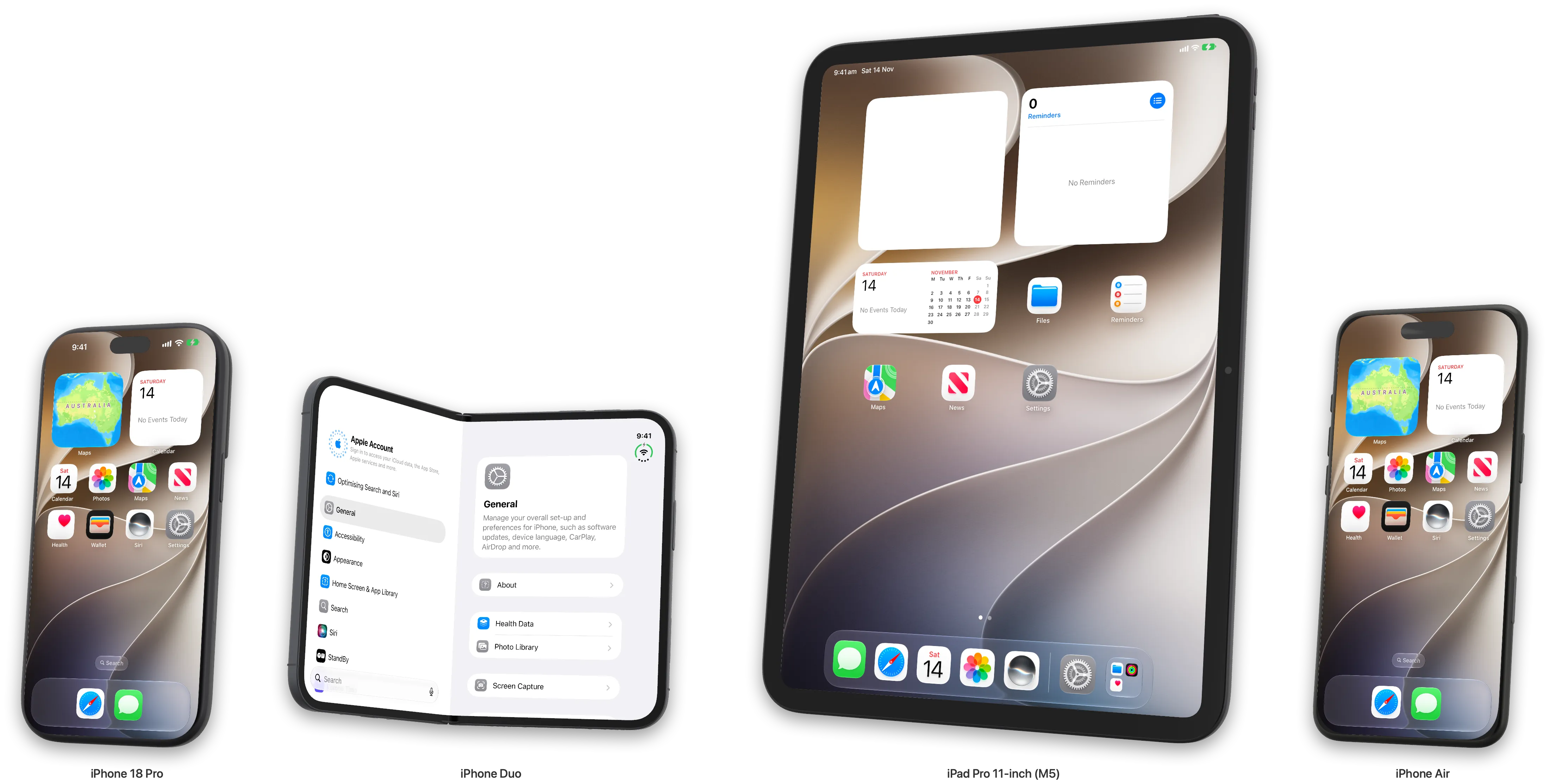
Put several devices side by side, each on its own simulator, to compare one screen across them.
- Devices
- iPhone 18 Pro, iPhone 18 Pro Max, iPhone Air, iPhone Duo, iPad mini (A17 Pro), iPad Pro 11-inch and 13-inch (M5)
- Sync
- Touch any device and the others repeat it: the control with the same label, or the same place. A warning marks one that could not find it.
- Lead
- The device you touched last leads. A device that joins opens the lead’s app.
- True Size
- On: devices at their real relative size. Off: each as large as fits.
- Presets
- Upright, Landscape, Angled, Duo Closed, Duo Laptop, or save your own layout by name
- Remove
- A device leaves at once, with Undo for 8 seconds. A simulator Devicewing started shuts down after that.
- Filmstrip
- Live tiles of every screen. ⌘0 for the Board, ⌘1 to ⌘9 for one device, Esc to go back.
Turn and fold
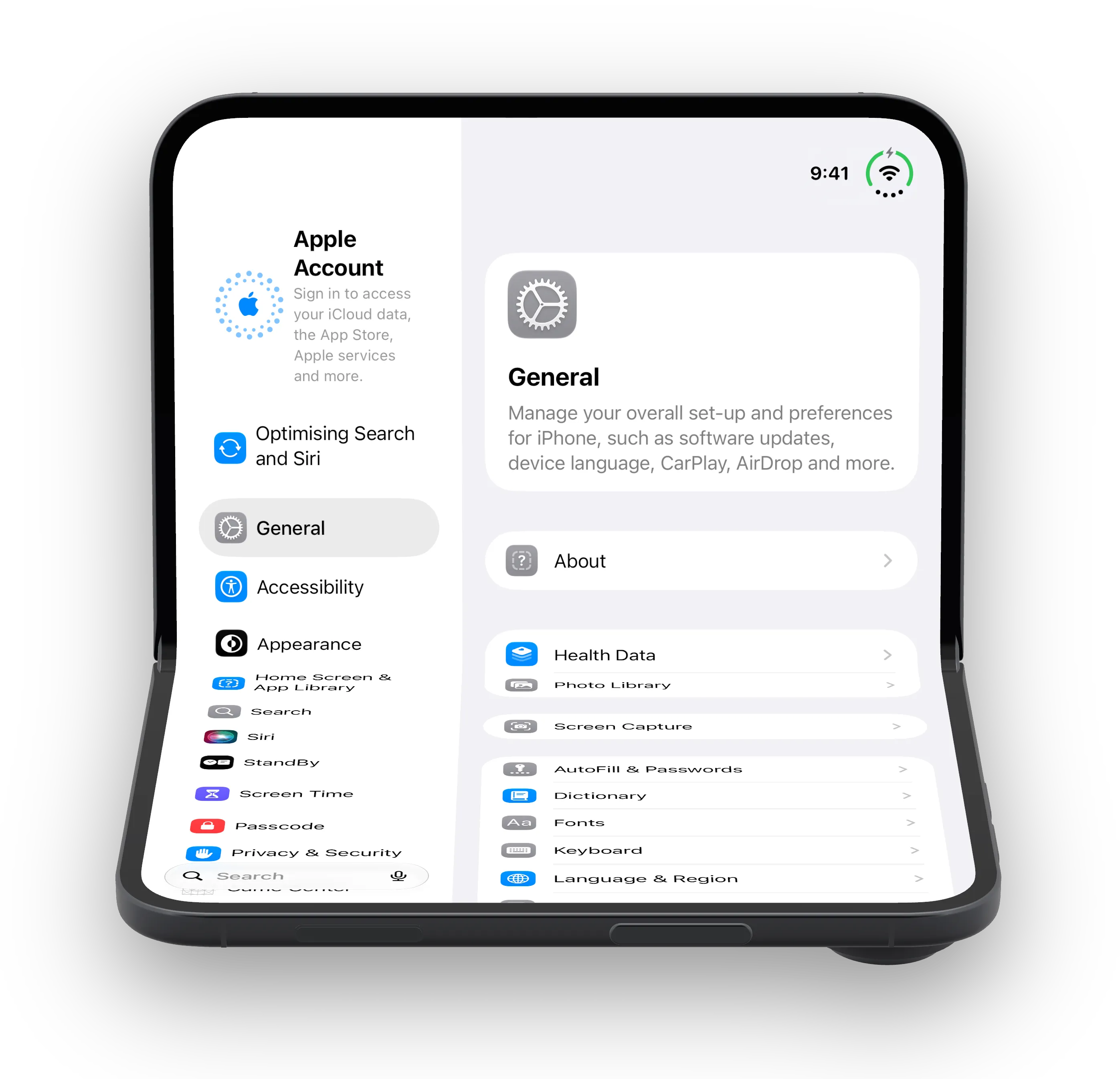
The simulator follows the model. Fold the iPhone Duo and iOS switches between the cover and inner screens and tells your app about the hinge. Turn any device and the interface rotates.
- Poses
- Closed 0°, Tent 70°, Laptop 105°, Book 110°, Flat 180°
- Fold
- Any angle from 0° (closed) to 180° (open flat)
- Turn tool R
- Click to turn a device a quarter. Drag to turn it freely.
- Move tool V
- Drag a device to a new place on the Board. The layout is kept.
- Zoom
- Scroll to zoom. Double-click off the screen to reset.
- Finish
- The iPhone Duo comes in Night Sky or Star White.
Touch and buttons
Click or drag on any screen to touch it. Every device has its hardware buttons beside it, and the Controls menu has shortcuts.
- Touch tool T
- Touches the screen. Dragging beside a device turns it.
- Home
- ⇧⌘H
- Lock
- ⌘L
- Siri
- ⌥⇧⌘H, holding the side button
- App Switcher
- ⌃⇧⌘H
- Turn left / right
- ⌘← ⌘→
- Also
- Volume up and down, and the Action button on iPhones that have one
- Not possible
- Camera Control: no iPhone simulator has it.
Screenshots
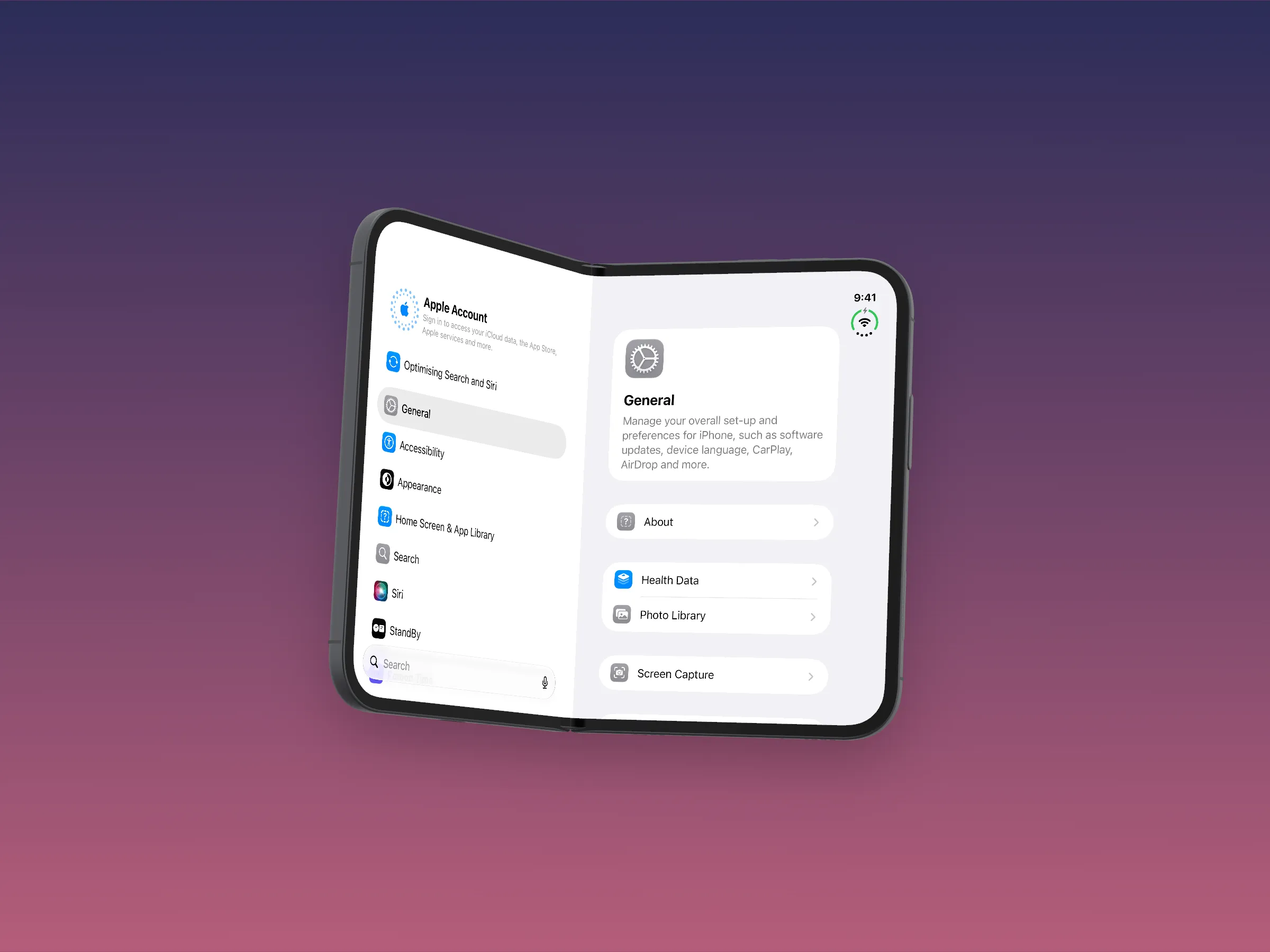
Save just what iOS draws, or the device on a background with a caption, at the size you need.
- Screenshot ⇧⌘S
- Screen only, or with the device on its background
- Sizes
- Fitted, App Store (the screen’s own pixels), 4:3, 16:9, 1:1, 9:16
- Background
- The window’s grey, a colour, a gradient, an image, or transparent
- Caption
- Above or below the device
- Clean status bar
- 9:41, full battery and full signal on every connected simulator
- Extras
- A soft shadow, a dot at each touch, a copy on the clipboard
- iPhone Duo sets
- Every pose, or the cover and inner screens, in one go
- Snapshot all
- Every screen on the Board, plus one picture of them side by side
Recording
Two recorders, kept apart. Screen records what iOS draws. 3D view records the device itself as it moves.
- Screen ⇧⌘R
- The simulator’s screen. On the Board, each screen to its own movie.
- 3D view ⌥⇧⌘R
- The device turning and folding, on your background
- Formats
- MOV, MP4 or GIF
- Trim
- Seconds to cut from the start and end, set once for both
- Recorded moves
- Full turn, Side to side, Fold open, Fold shut
Agents and scripts
Devicewing is an MCP server with 44 tools, and the same controls as a command, devicewing. Pose, fold and turn calls return once iOS has finished redrawing, so the next screenshot sees the screen as it stays.
devicewing board devices iphone-18-pro iphone-duo ipad-mini
devicewing install build/MyApp.app
devicewing launch com.example.myapp
devicewing pose tent
devicewing tap-element Continue
devicewing board capture ~/Desktop/compare- Device
- pose, fold, rotate, view, Board, list devices and simulators
- Screen
- capture, describe, tap, tap by label, swipe, pinch, type, keys, pasteboard, wait for an element or for the screen to settle
- Apps
- install, launch, terminate, uninstall, list, logs, open a URL
- Simulator
- appearance, status bar, location, permissions, push notifications
- Capture
- screenshots, capture options, sets, recorded moves, screen and 3D view recording
The window
A top bar, a tool rail, the stage, the filmstrip and a status line, in light or dark.
- Appearance
- Light, dark or matching the Mac, from the tool rail or View › Appearance
- Keep on top
- The pin keeps the window above other apps, beside your editor.
- Status line
- What the active tool does, which device leads, and how much memory the devices use
- Saved notices
- Say where a capture went. Drag one to drop the file into another app.
- Kept between launches
- Fold, rotation, zoom, finish, background, capture options and the Board layout